Add To Card Carousel
Add cards to a carousel collection in Microsoft Teams
Written By Support Channel
Last updated Over 1 year ago
Overview of Add To Card Carousel
The Add to Card Carousel action lets you add a new Adaptive Card to a carousel in Microsoft Teams, allowing you to present multiple cards side by side in a scrollable format.
Understand the Add To Card Carousel action
To successfully use the Add To Card Carousel action, several settings must be configured. These settings determine who will receive the card, which card will be displayed, and how its content will be populated.
Teams Instance
Select the Microsoft Teams instance where the card will be sent
Card Template
Choose the Adaptive Card template to be used. See Card Editor for information on card templates.
Card Data
Provide the data needed to populate dynamic elements of the card. These values map to the placeholders or data fields defined in your chosen card template. For example:
Title: "Approval #1234"
Username: "John Smith"
Status: "Pending"
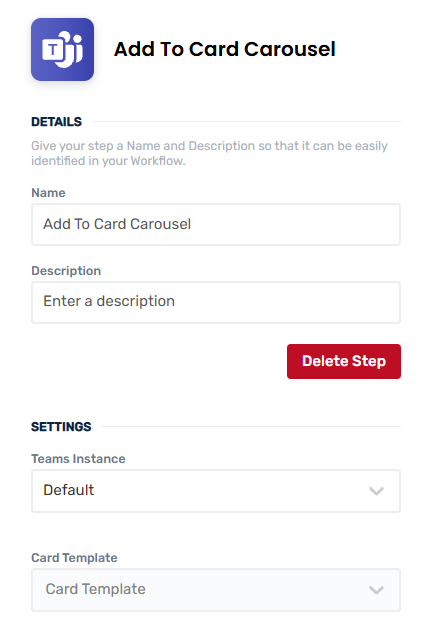
Create and manage Add To Card Carousel actions
Add a Add To Card Carousel action
Add the action
Use the following steps to add the action to a workflow.
How to add an action to a workflow
How to add an action to a workflow
Click the ‘plus’ symbol on the workflow path at the point you want to insert the action. This opens the action menu slide-over.
Either:
Search for the action using the Search field above the actions in the menu.
Locate a Recently Used action in the top section of the menu.
Navigate to the action within menu: Core actions are listed under Actions, while Plugin actions are contained within their associated integration.
Select the desired action to insert it. This reveals the action’s configuration panel.
Use the Name field to name the action. This can help users to understand your workflow at a glance. (optional)
Use the Description field to add information describing the action. This can help users wanting to understand how your workflow functions (optional).
Configure the action
Use the following steps to configure the action.
Set values for the fields
Teams Instance
Card Template
Fill in the Card Data if the card template has any.
Click back in the main view to hide the slide-over.
Delete a Add To Card Carousel action
Use the following steps to remove the action from your workflow:
How to remove an action from a workflow
How to remove an action from a workflow
Access the workflow in draft mode to edit it.
Either:
hover your mouse cursor over the action, and then click the red cross that appears over the top-right corner of the action to delete it. Or:
click on the action to open the action slide-over. Click the red 'Delete Step’ button to remove the action from your workflow.
Click Publish in the top-right to commit your changes.
Take care when deleting an action to also remove any logic using its outputs: workflow steps may function incorrectly or break if they attempt to evaluate an output of a deleted action.
Was this helpful?
Still need help? Share an idea