Create Service Request
Reference documentation for using the Ivanti Neurons for ITSM Create Service Request action
Written By Support Channel
Last updated Over 1 year ago
Overview of the Create Service Request action
The Create a Service Request action enables you to dynamically create a new Service Request record within Ivanti Neurons for ITSM, using the Create Service Request API.
Understanding the Create Service Request action
The Create Service Request action allows you to generate a new Service Request in Ivanti Neurons for ITSM using a predefined template and a set of template values. Service Request templates define the fields that this template has.
Neurons for ISM System
Select the Ivanti Neurons for ITSM system that the schema will be retrieved from.
Request Offering
Specify the request offering to use to create the service request from within your Ivanti environment
Map Fields Manually
Check this option if you want to manually map field values for the parameters. Otherwise, the system auto generates a card to show to the user.
Data
Payload of generated card’s output.
Field Values
A list of field names and values from the offering to assign. These must match the field definitions in the selected business object. For example:
Subject: "I need help with my laptop"
Symptom: "my laptop does not turn on"
User Email
The user that the service request will be created for.
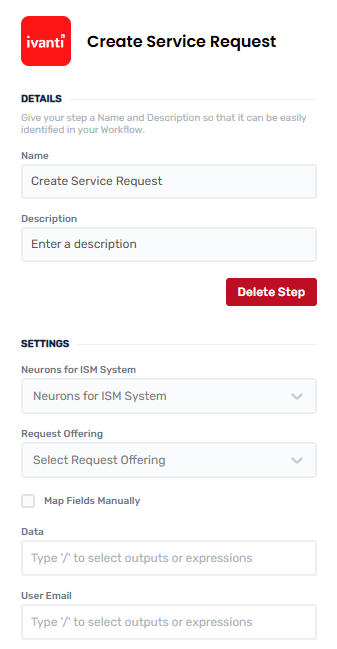
Working with Create Service Request action
To use this action effectively, ensure that the Request Offering you select is published and available in your Ivanti environment, and that all required fields are correctly populated. Manual field mapping allows you to tailor the submission using expressions or specific workflow data, such as user input or system-generated values.
Note
If you are using the data field, you must use an Autogenerated Card from the Ivanti plugin to ensure all the data in the background is correct. This is not required when you are manually mapping fields.
The action outputs the Business Object RecId of the created Service Request, which can then be referenced in subsequent actions. This makes the Create Service Request action a foundational step in automating end-to-end service delivery processes in your workflows.
Create and manage Create Service Request actions
Add a Create Service Request action
Add the action
Use the following steps to add the action to a workflow.
How to add an action to a workflow
How to add an action to a workflow
Click the ‘plus’ symbol on the workflow path at the point you want to insert the action. This opens the action menu slide-over.
Either:
Search for the action using the Search field above the actions in the menu.
Locate a Recently Used action in the top section of the menu.
Navigate to the action within menu: Core actions are listed under Actions, while Plugin actions are contained within their associated integration.
Select the desired action to insert it. This reveals the action’s configuration panel.
Use the Name field to name the action. This can help users to understand your workflow at a glance. (optional)
Use the Description field to add information describing the action. This can help users wanting to understand how your workflow functions (optional).
Configure the action
Use the following steps to configure the action.
Set values for the Neurons for ISM System and Business Object.
Click Add Fields to add a new field value.
Select Field Name and give it a value in the Right field. This can be a simple value such as a Number or Text string, or it can be the return value of an expression.
Click OK to complete setup of your new field value.
Set values for the Data and User Email.
Click back in the main view to hide the slide-over.
Delete a Create Service Request action
Use the following steps to remove the action from your workflow:
How to remove an action from a workflow
How to remove an action from a workflow
Access the workflow in draft mode to edit it.
Either:
hover your mouse cursor over the action, and then click the red cross that appears over the top-right corner of the action to delete it. Or:
click on the action to open the action slide-over. Click the red 'Delete Step’ button to remove the action from your workflow.
Click Publish in the top-right to commit your changes.
Take care when deleting an action to also remove any logic using its outputs: workflow steps may function incorrectly or break if they attempt to evaluate an output of a deleted action.
Was this helpful?
Still need help? Share an idea