Show Card
Send information cards to a web client chat stream
Written By Support Channel
Last updated Over 1 year ago
Overview of the Show Card action
The Show Card action allows you to display an Adaptive Card directly to a specific user within a web chat.
Understand the Show Card action
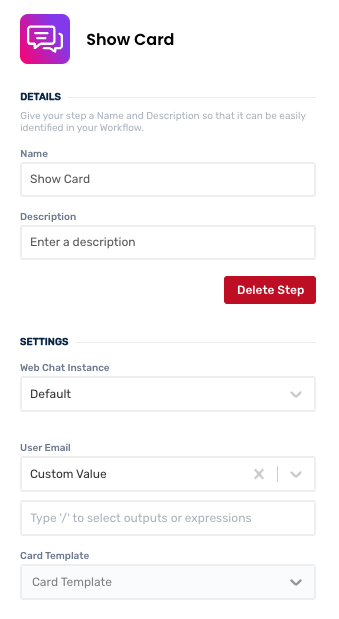
To successfully use the Show Card action, several settings must be configured. These settings determine who will receive the card, which card will be displayed, and how its content will be populated.
Parameters
Web Chat Instance - Select the Web chat instance where the card will be sent
User Email - Enter the email address of the user who should receive the card. This must be a valid user within the selected chat instance.
Card Template - Choose the Adaptive Card template to be used. See Card Editor for information on card templates.
Card Data - Provide the data needed to populate dynamic elements of the card. These values map to the placeholders or data fields defined in your chosen card template. For example:
Title: "Approval #1234"
Status: "Pending"
Outputs
None
Working with the Show Card action
Note
Using the Show Card action with a card that has inputs/buttons will halt the workflow until the card is complete.
A Show Card action can be used as a reference in other actions, like the Update Card action, once it has been introduced and set up in your workflow.
Create and manage Show Card actions
Add a Show Card action
Add the action
Use the following steps to add the action to a workflow.
How to add an action to a workflow
How to add an action to a workflow
Click the ‘plus’ symbol on the workflow path at the point you want to insert the action. This opens the action menu slide-over.
Either:
Search for the action using the Search field above the actions in the menu.
Locate a Recently Used action in the top section of the menu.
Navigate to the action within menu: Core actions are listed under Actions, while Plugin actions are contained within their associated integration.
Select the desired action to insert it. This reveals the action’s configuration panel.
Use the Name field to name the action. This can help users to understand your workflow at a glance. (optional)
Use the Description field to add information describing the action. This can help users wanting to understand how your workflow functions (optional).
Configure the action
Use the following steps to configure the action.
Set values for the fields: Web Chat Instance; User Email; Card Template
Set Card Data values for fields generated from the card template, if present. Required fields must have values entered.
Click back in the main view to hide the slide-over.
Delete a Show Card action
Use the following steps to remove the action from your workflow:
How to remove an action from a workflow
How to remove an action from a workflow
Access the workflow in draft mode to edit it.
Either:
hover your mouse cursor over the action, and then click the red cross that appears over the top-right corner of the action to delete it. Or:
click on the action to open the action slide-over. Click the red 'Delete Step’ button to remove the action from your workflow.
Click Publish in the top-right to commit your changes.
Take care when deleting an action to also remove any logic using its outputs: workflow steps may function incorrectly or break if they attempt to evaluate an output of a deleted action.
When a Show Card action is removed, any Update Card actions that reference it in their Card To Update field will lose that connection. As a result, the Card To Update field in those Update Card actions will be automatically cleared, since the referenced Show Card no longer exist.
Was this helpful?
Still need help? Share an idea