User Email
Reference documentation for using the User Email action
Written By Support Channel
Last updated Over 1 year ago
Overview of the User Email action
The User Email action retrieves the current user's email address and makes it available for use as a variable within the chatbot workflow, such as for personalisation, authentication, or follow-up communication.
The User Email action only needs to be placed somewhere within the workflow for its output to be made available to use in other workflow steps.
It does not require any additional setup or interaction for it to function.
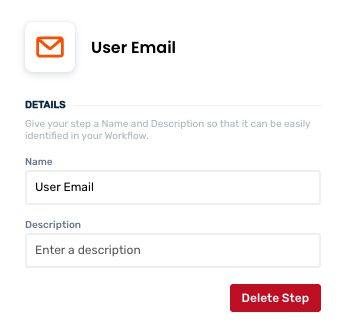
Create and manage User Email actions
Add a User Email action
Add the action
Use the following steps to add the action to a workflow.
How to add an action to a workflow
How to add an action to a workflow
Click the ‘plus’ symbol on the workflow path at the point you want to insert the action. This opens the action menu slide-over.
Either:
Search for the action using the Search field above the actions in the menu.
Locate a Recently Used action in the top section of the menu.
Navigate to the action within menu: Core actions are listed under Actions, while Plugin actions are contained within their associated integration.
Select the desired action to insert it. This reveals the action’s configuration panel.
Use the Name field to name the action. This can help users to understand your workflow at a glance. (optional)
Use the Description field to add information describing the action. This can help users wanting to understand how your workflow functions (optional).
Delete a User Email action
Use the following steps to remove the action from your workflow:
How to remove an action from a workflow
How to remove an action from a workflow
Access the workflow in draft mode to edit it.
Either:
hover your mouse cursor over the action, and then click the red cross that appears over the top-right corner of the action to delete it. Or:
click on the action to open the action slide-over. Click the red 'Delete Step’ button to remove the action from your workflow.
Click Publish in the top-right to commit your changes.
Take care when deleting an action to also remove any logic using its outputs: workflow steps may function incorrectly or break if they attempt to evaluate an output of a deleted action.
Use a User Email action
After using the User Email action, you will be able to use / to call on and utilise the output value under the User Email category.
Was this helpful?
Still need help? Share an idea