Set Variable
Reference documentation for using the Set Variable action
Written By Support Channel
Last updated Over 1 year ago
Overview of the Set Variable action
The Set Variable action allows you to create or update a variable in your workflow and utilise them again later in your logic. Examples of this include transferring data between actions, saving computed results, and collecting user input.
Understand the Set Variable action
To successfully use the Set Variable action, a few key settings must be configured. These settings define what the variable is called and the value to be used to initialise your variable.
Variable Name
Enter a name for the variable you want to create or update. This name is how you’ll reference the stored value later in your workflow. For example: userName
Value (Expression)
Enter the value you want to store in the variable. This can be static text, a number, or a dynamic expression pulled from a previous step (like form input, API response, or calculation).
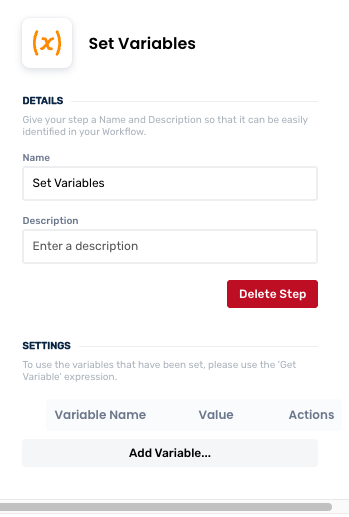
To update a variable’s value, simply use the Set Variable action again with the same name (this is a case sensitive field, for example username will create a new variable but userName will update the original). The new value you enter will overwrite the previous one.
Create and manage User Email actions
Add a User Email action
Add the action
Use the following steps to add the action to a workflow.
How to add an action to a workflow
How to add an action to a workflow
Click the ‘plus’ symbol on the workflow path at the point you want to insert the action. This opens the action menu slide-over.
Either:
Search for the action using the Search field above the actions in the menu.
Locate a Recently Used action in the top section of the menu.
Navigate to the action within menu: Core actions are listed under Actions, while Plugin actions are contained within their associated integration.
Select the desired action to insert it. This reveals the action’s configuration panel.
Use the Name field to name the action. This can help users to understand your workflow at a glance. (optional)
Use the Description field to add information describing the action. This can help users wanting to understand how your workflow functions (optional).
Configure the action
Use the following steps to configure the action.
Click Add Variable to add a new variable.
Name the variable and give it a value in the Expression field. This can be a simple value such as a Number or Text string, or it can be the return value of an expression.
Click OK to complete setup of your new variable.
Click back in the main view to hide the slide-over.
Delete a User Email action
Use the following steps to remove the action from your workflow:
How to remove an action from a workflow
How to remove an action from a workflow
Access the workflow in draft mode to edit it.
Either:
hover your mouse cursor over the action, and then click the red cross that appears over the top-right corner of the action to delete it. Or:
click on the action to open the action slide-over. Click the red 'Delete Step’ button to remove the action from your workflow.
Click Publish in the top-right to commit your changes.
Take care when deleting an action to also remove any logic using its outputs: workflow steps may function incorrectly or break if they attempt to evaluate an output of a deleted action.
Any attempt to read a variable that has been removed will return an empty result. In addition, removing a Set Variable action from the workflow will not cause actions or expressions configured to use the variable to update. So take care when you remove a variable to ensure that other actions or expressions are not trying to use it.
Using a Set Variable action
After configuring your Set Variable action, you will be able to call it using the / tag control to utilise your variable under the Variable category.
Was this helpful?
Still need help? Share an idea