Handoff
Reference documentation for using the Handoff action
Written By Support Channel
Last updated Over 1 year ago
Overview of the Handoff action
The Handoff action enables a workflow to transfer a user conversation to a human technician when automated support is no longer sufficient. This allows the technician to respond through the bot interface, ensuring a seamless user experience.
Understanding the Handoff action
The Handoff action is designed for situations where the bot is unable to fully resolve the user's issue and needs to escalate the conversation to a real person. When triggered, it routes the conversation to one or more designated users (technicians) who can respond via the bot.
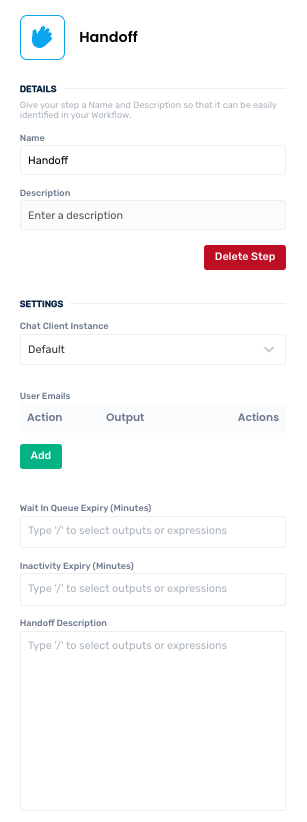
Chat Client Instance
Select the Chat Client instance where the handoff will be sent to
User Emails
Add the emails of the technicians that could potentially respond to this handoff
Wait In Queue Expiry (Minutes)
The time a requestor will wait for a handoff to be picked up before expiring
Inactivity Expiry (Minutes)
The time that the handoff will expire if no message is sent on either end of an active handoff
Handoff Description
Set the description of the handoff to send to the user. This will show up as the description once a handoff has started.
Working with the Handoff action
The Handoff action is a vital fallback for chatbots, ensuring that when automation reaches its limits, the user still receives timely and effective assistance.
You can assign one or multiple technicians by entering their email addresses. These users will receive the handoff request and will have the ability to respond directly through the bot. Adding multiple users increases availability and responsiveness, which is especially useful for distributed teams or shift-based support coverage.
To provide context for the technician, you can configure a Handoff Description. This is a short message that describes the issue or reason for the handoff, helping the human responder quickly understand the situation.
Integrating with Microsoft Teams
When working with Microsoft Teams, it is important to realise that OneBot is designed to work with the configured Teams instance’s Available Status Values configuration. See the article Microsoft Teams Permissions Configuration for further information.
Create and manage Handoff actions
Add a Handoff action
Add the action
Use the following steps to add the action to a workflow.
How to add an action to a workflow
How to add an action to a workflow
Click the ‘plus’ symbol on the workflow path at the point you want to insert the action. This opens the action menu slide-over.
Either:
Search for the action using the Search field above the actions in the menu.
Locate a Recently Used action in the top section of the menu.
Navigate to the action within menu: Core actions are listed under Actions, while Plugin actions are contained within their associated integration.
Select the desired action to insert it. This reveals the action’s configuration panel.
Use the Name field to name the action. This can help users to understand your workflow at a glance. (optional)
Use the Description field to add information describing the action. This can help users wanting to understand how your workflow functions (optional).
Configure the action
Use the following steps to configure the action.
Click Add in the User Emails section to add a new email or email collection. This opens the Configure Array Item popup.
Enter an email or an array of emails, one for available technician.
Click OK to complete setup of your new array value.
Select the Chat Client Instance, Wait In Queue Expiry (Minutes), Inactivity Expiry (Minutes), and the Handoff Description.
Click back in the main view to hide the slide-over.
Edit the action
Use the following steps to make changes to the action.
Edit an existing entry by clicking the eye symbol toward the right side of the entry. This displays the Configure Array Item popup and allows you to make changes.
Remove an unwanted entry by clicking the red cross toward the right-side.
Click back in the main view to hide the slide-over.
Delete a Handoff action
Use the following steps to remove the action from your workflow:
How to remove an action from a workflow
How to remove an action from a workflow
Access the workflow in draft mode to edit it.
Either:
hover your mouse cursor over the action, and then click the red cross that appears over the top-right corner of the action to delete it. Or:
click on the action to open the action slide-over. Click the red 'Delete Step’ button to remove the action from your workflow.
Click Publish in the top-right to commit your changes.
Take care when deleting an action to also remove any logic using its outputs: workflow steps may function incorrectly or break if they attempt to evaluate an output of a deleted action.
Was this helpful?
Still need help? Share an idea