Expressions Introduction
Use expressions to process information and supercharge your workflows.
Written By Ben Lehmann
Last updated Over 1 year ago
Overview
Expressions allow workflow actions to modify and operate on data. They enable OneBot to configure powerful and expressive interactions within and between actions, workflows, integrations, objects and data.
Use expressions in fields exposed in a workflow action’s configuration view. Once the evaluation is complete, an expression returns the result back to the context that called it.
Understand expressions
Expressions are used throughout OneBot, appearing widely across actions and within workflows. They are easy-to-use tools for when you need to format a string of text, find a date, or perform a calculation.
Use OneBot’s Tag Control to start an expression by typing a / forward slash. This provides a list of actions and expressions to choose from. Selecting an expression brings up a dialogue used to configure your expression.
Expression context and nesting
Expressions return their evaluation into the context that calls them. This means they can be used within action fields, or ‘nested’ inside other expressions like a Russian doll. Nested expressions are evaluated from ‘the inside-out’, with the innermost expression returning its result to its enclosing context, continuing until the nested stack is fully evaluated.
Expression example
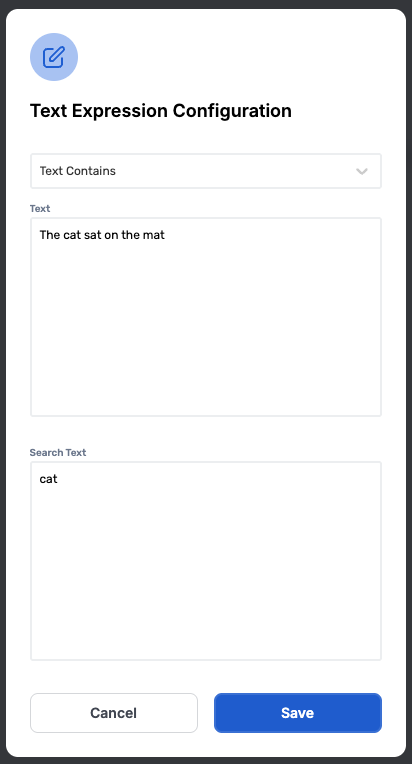
The Text Contains expression is a simple example of how expressions work.
All expressions use a dialogue box to configure how they work.
The Text Contains expression searches through the text it finds in its text field.
It looks for the text it has in its search text field, trying to match it exactly.
It then returns true if it finds an exact match somewhere in the text in its text field. Otherwise, it returns false.
Resources
OneBot provides many expressions. For a full treatment of all of the expressions, what they do and how they function, please see the Expressions Reference in the Reference section.
Was this helpful?
Still need help? Share an idea