Introduction to the Adaptive Card Designer
Guidance on how to create new card definitions using Microsoft's Adaptive Card Designer
Written By Kevin Baker
Last updated About 1 year ago
Overview
This page supports understanding of the different parts of Microsoft’s Card Designer and how to get started using it to support creating new Adaptive Card definitions to use in OneBot
Understanding the panes in the designer
Open the link to the Designer.
The menubar along the top provides options to set the host app, the target version, and to preview the card.
The left column displays card elements that can be added to a card
The large panes in the middle present views of the card as it is being designed.
An interactive preview of the card
The card structure
The element properties of the selected element
The lower panes display the JSON that represents the card and its sample data
Card payload editor on the left
Sample data editor on the right

Fig. 1 - The Adaptive Card Designer
The card payload editor
The card payload editor (panel 5a in figure 1) defines the actual card: the other panes only support the development of the JSON here. Furthermore, the panes along the top (the preview, card structure etc.) update to reflect the card as it is defined in the card payload editor
Useful features
New card button reveals a card template library to use as starting points for new cards
Select host app dropdown lets you set the designer to target the correct app
Target version dropdown allows you to select the correct adaptive card version - apps are not all current with the lates version, so select the version appropriate to your target app.
Preview mode simulates an interactive card, allowing functionality to be tested.
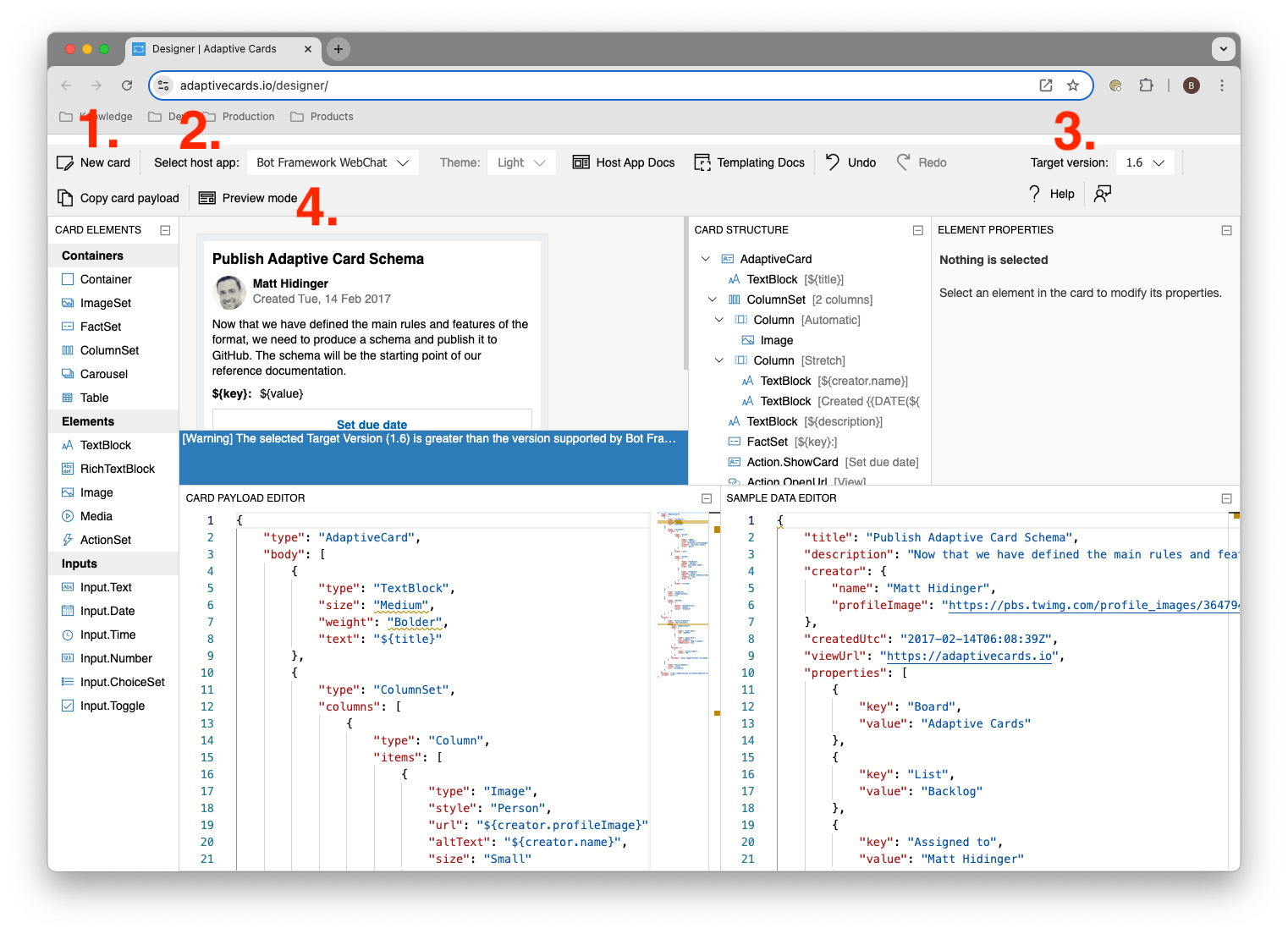
Fig. 2 - Useful features in the designer
The Adaptive Card Hub
Microsoft are building a resource centre for Adaptive Cards called the Microsoft Adaptive Card Hub. The hub is a good place to look for inspiration and sample cards. They also offer an alternative card designer there with a slightly different feature set.
Was this helpful?
Still need help? Share an idea