Show Card Carousel
Reference documentation for using the Web Client Show Card Carousel action
Written By Support Channel
Last updated Over 1 year ago
Overview of the Show Card Carousel action
The Show Card Carousel action allows you to send a carousel (a scrollable row) of Adaptive Cards to a specific user within a web chat. Instead of sending one card at a time, this action lets you display multiple cards side-by-side in a single message.
Understanding the Show Card Carousel action
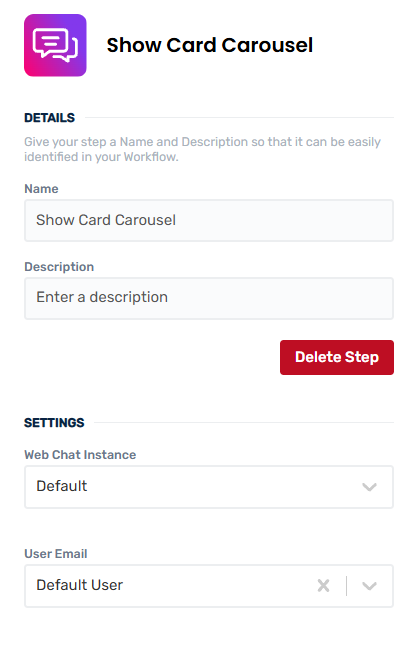
To successfully use the Show Card Carousel action, the following parameters must be configured. Each one plays a role in determining who sees the card carousel.
Parameters
Web Chat Instance - Select the Web Chat instance where the card will be sent.
User Email - Enter the email address of the user who should receive the card. This must be a valid user within the selected web chat instance.
Outputs
Card Index - the index of the card currently displayed in the chat stream
Working with the Show Card Carousel action
How it works
Cards are added to a ‘staging’ card carousel off-screen by calling the Add To Card Carousel action. At any point, the content of the staging carousel can be pushed to the chat client using the Show Card Carousel action. Having moved its card content to the chat client, the staging carousel is emptied and ready to accept new cards in response to further Add To Card Carousel actions.
Working with published card carousels
Once a card carousel has been shown using with the Show Card Carousel action, you are no longer able to add further cards to it. If you need to change the cards displayed by an existing carousel, either use the Update Card Carousel action to change the cards it displays, or build a new carousel with the additional cards required and publish this to the chat stream.
Note
Workflow’s have a staging card carousel. Showing a carousel publishes its content to the chat stream. Published carousels may be updated, but can’t receive additional cards.
Calling the Add To Card Carousel action after showing a carousel will add a card to the staging carousel off-screen, and not to a carousel published to the chat stream.
A Show Card Carousel action can be used as a reference in other actions, like the Update Card Carousel action, once it has been introduced and set up in your workflow.
Create and manage Show Card Carousel actions
Add a Show Card Carousel action
Add the action
Use the following steps to add the action to a workflow.
How to add an action to a workflow
How to add an action to a workflow
Click the ‘plus’ symbol on the workflow path at the point you want to insert the action. This opens the action menu slide-over.
Either:
Search for the action using the Search field above the actions in the menu.
Locate a Recently Used action in the top section of the menu.
Navigate to the action within menu: Core actions are listed under Actions, while Plugin actions are contained within their associated integration.
Select the desired action to insert it. This reveals the action’s configuration panel.
Use the Name field to name the action. This can help users to understand your workflow at a glance. (optional)
Use the Description field to add information describing the action. This can help users wanting to understand how your workflow functions (optional).
Configure the action
Use the following steps to configure the action.
Set values for the fields Web Chat Instance and User Email.
Set Card Data values for fields generated from the card template, if present. Required fields must have values entered.
Click back in the main view to hide the slide-over.
Delete a Show Card Carousel action
Use the following steps to remove the action from your workflow:
How to remove an action from a workflow
How to remove an action from a workflow
Access the workflow in draft mode to edit it.
Either:
hover your mouse cursor over the action, and then click the red cross that appears over the top-right corner of the action to delete it. Or:
click on the action to open the action slide-over. Click the red 'Delete Step’ button to remove the action from your workflow.
Click Publish in the top-right to commit your changes.
Take care when deleting an action to also remove any logic using its outputs: workflow steps may function incorrectly or break if they attempt to evaluate an output of a deleted action.
When a Show Card Carousel action is removed, any linked Update Card Carousel actions that reference it in their Card Carousel To Update field will lose that connection. As a result, the Card Carousel To Update field in those Update Card Carousel actions will be automatically cleared, since the referenced Show Card Carousel no longer exists.
Was this helpful?
Still need help? Share an idea