REST Post
Reference documentation for using the REST API REST Post action
Written By Support Channel
Last updated Over 1 year ago
Overview of the REST Post action
The REST Post action allows you to send data to an external system using a standard HTTP POST request.
Understanding the REST Post action
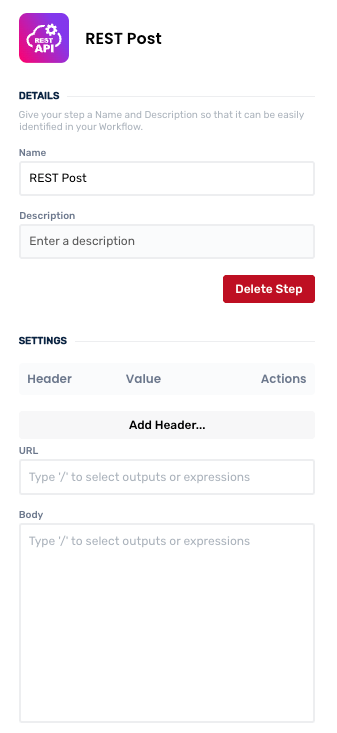
The REST Post action sends a HTTP POST request to the specified URL along with a request body and optional headers.
Headers
A list of header names and values for the API request. For example:
Content-Type: “application/json”
Authorisation: “rest_api_key=1234”
URL
Specify the endpoint where the POST request should be sent.
Body
Specify the content the POST request will be sending.
Working with the REST Post action
The Body field in the REST Post action sends data exactly as entered, so it must match the format expected by the receiving server. If the API requires JSON, for example, the content in the Body must be valid JSON syntax.
Additionally, you should set the appropriate Content-Type header such as application/json for JSON or application/xml for XML. This lets the server know how to interpret the incoming data. Sending incorrectly formatted data or omitting the correct header can cause the request to fail or be rejected by the API.
Output Variables
Create and manage REST Post actions
Add a REST Post action
Add the action
Use the following steps to add the action to your workflow.
How to add an action to a workflow
How to add an action to a workflow
Click the ‘plus’ symbol on the workflow path at the point you want to insert the action. This opens the action menu slide-over.
Either:
Search for the action using the Search field above the actions in the menu.
Locate a Recently Used action in the top section of the menu.
Navigate to the action within menu: Core actions are listed under Actions, while Plugin actions are contained within their associated integration.
Select the desired action to insert it. This reveals the action’s configuration panel.
Use the Name field to name the action. This can help users to understand your workflow at a glance. (optional)
Use the Description field to add information describing the action. This can help users wanting to understand how your workflow functions. (optional)
Configure the action
Use the following steps to configure the action.
Click Add Header to create a new header entry. This reveals the Header popup.
Select Header and type the name of the header.
Select Value and input the value of the header
Click OK to complete setup of your new field value.
Repeat the above steps for any addition additional headers needed.
Set a value for the URL and Body.
Click back in the main view to hide the slide-over.
Edit the action
Use the following steps to make changes to the action.
Edit an existing Header entry by clicking on it. This displays the Edit Header popup and allows you to make changes.
Remove an unwanted entry by clicking the red cross toward its right-side.
Click back in the main view to hide the slide-over.
Delete a REST Post action
Use the following steps to remove the action from your workflow.
How to remove an action from a workflow
How to remove an action from a workflow
Access the workflow in draft mode to edit it.
Either:
hover your mouse cursor over the action, and then click the red cross that appears over the top-right corner of the action to delete it. Or:
click on the action to open the action slide-over. Click the red 'Delete Step’ button to remove the action from your workflow.
Click Publish in the top-right to commit your changes.
Take care when deleting an action to also remove any logic using its outputs: workflow steps may function incorrectly or break if they attempt to evaluate an output of a deleted action.
Was this helpful?
Still need help? Share an idea