Tag Control
Access powerful expressions and action outputs using OneBot's tag control
Written By Ben Lehmann
Last updated Over 1 year ago
Overview
OneBot’s Tags are entered using the Tag Control and provide quick entry access to the functions and the properties of actions, expressions, and objects across a workflow.
Understand the tag control
Triggering OneBot’s tag control reveals a context aware list of Actions and objects, together with Expressions for processing and evaluating data. Selecting a list item displays its accessible functions and properties.
You bring up the tag control by entering the forward-slash / character into a field that can use expressions and action output. These are typically fields in the ‘settings’ section of OneBot actions, or fields found inside expression dialogues. A tag that represents the action output, interaction result, or evaluated expression is inserted into the field at the / character location.
At runtime, as the workflow reaches the action containing the tag, it will evaluate the tag and any nested behaviour within it, inserting the evaluated outcome of the tag into the context where it has been placed.
Create and manage tags
Tags made using the tag control appear within fields at the point where the / is inserted. Tags remain editable after they have been created, making it simple to edit or remove them.
Tag control options
When adding a tag, OneBot provides a list of categories and options to use. Action interaction and object access appear at the top of the list under the ‘Workflow’ category. Below this, the ‘Expressions’ category displays a dropdown with the expression sub-categories from which you can select an expression.
Insert a tag using the tag control
Use a forward slash / character to activate the tag control. This works inside the settings fields of an action configuration view or within a field of an expression dialog.
Select an action in a OneBot workflow. This reveals the configuration slide over.
Click inside a ‘settings’ field.
Type
/to reveal the tag controlClick a list category to see a list of accessible properties and functions.
Click an option to insert a call to the property or function.
Alternatively, select an expression to open a configuration popup. This enables the setup of an expression from the chosen category.
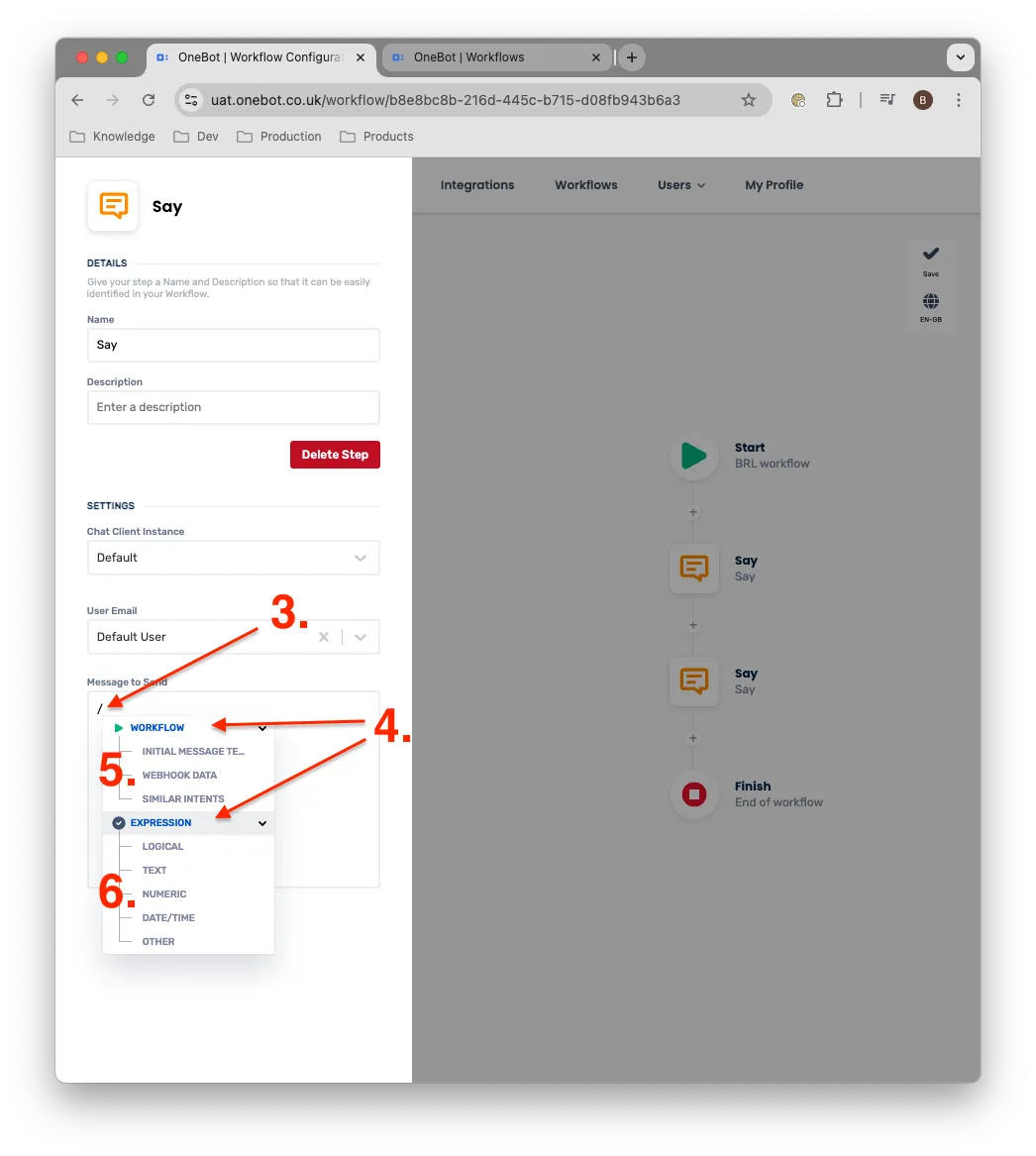
The tag representing the action output, interaction result, or evaluated expression outcome is inserted into the field at the / character location.
Delete a tag made with the tag control
You can delete tags made with the tag control just like normal text. You can also remove them by clicking the ‘delete cross’ to the right hand edge of any tag.
Caution when removing tags
Note that removing a tag is permanent and non-recoverable, with any data or configuration enclosed within the tag also being deleted. As tags are flexible, they can have a deep nesting of configuration, interaction, and data so use appropriate caution before deleting them.
In addition, the system does not check for references when a tag is removed. Consequently, OneBot does not warn the user of the impact of removing a tag if there are any other parts of the workflow depending on it.
Edit tag control entries
Tags and any nested configuration they contain remain editable after the tag has been created. Click on a tag to modify its configuration. Any nested tags appearing within action fields or dialogs also remain editable and are accessed in the same manner.
Use the tag control
Use the tag control within Expressions and in fields within Actions to add tags that trigger workflows, invoke functions on other actions, and to interact with objects and their data.
Resources
Was this helpful?
Still need help? Share an idea